
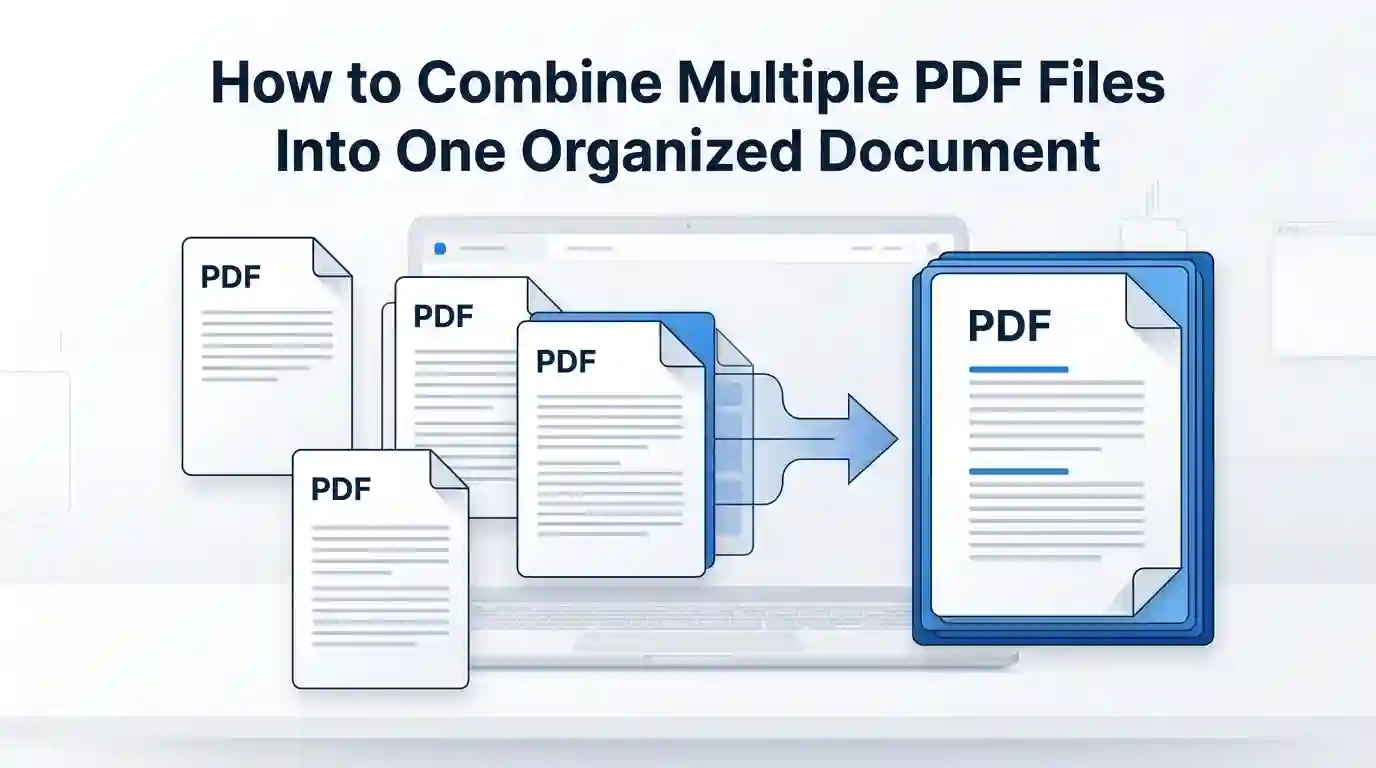
How to Combine Multiple PDF Files Into One Organized Document
When you work with documents regularly, it is common to end up with several PDF files for the same project. One file may contain the main report, another may contain supporting information, and a few more may contain scanned pages, forms, or other documents.
Keeping all of these files separate can make sharing and reviewing them unnecessarily difficult. Combining them into one PDF can make the final document easier to manage, especially when the files belong to the same project or submission.
This guide explains how to combine multiple PDF files into one organized document, how to arrange the pages properly, and what you should check before sharing the final file.
Why Combine Multiple PDF Files?
A single PDF can be more convenient when several files are related to the same task. Instead of asking someone to open five or six separate documents, you can provide one file containing everything in the correct order.
Combining PDFs can be useful for reports, project documents, application papers, invoices, study materials, business records, and other document collections.
- Keep related documents in one file.
- Make document sharing easier.
- Maintain a clear reading order.
- Reduce the number of separate attachments.
- Create a single copy for archiving.
Check Your PDF Files Before Combining Them
Before merging the files, check each document individually. Make sure you are using the latest version and remove any duplicate or outdated files.
It is also worth checking the page count. If one document contains an extra blank page or an old version of a page, remove it before creating the final PDF.
For a large collection of documents, putting the files into one folder can make the process easier. You can also rename them temporarily so their intended order is obvious.
For example:
- 01-Cover.pdf
- 02-Main-Report.pdf
- 03-Supporting-Documents.pdf
- 04-References.pdf
How to Combine Multiple PDF Files Into One
The exact buttons may vary depending on the PDF software or online service you use, but the basic process is almost the same.
1. Collect the PDF Files
Start by gathering all the PDF files that belong to the final document. Keep them in an easily accessible folder or location.
Do not add every PDF you have just because it is related to the same project. Only include the documents that are actually required in the final file.
2. Open a PDF Merge or Combine Tool
Open a trusted PDF application or online service that provides a merge or combine feature. Look for an option such as Merge PDF, Combine PDF, or Join PDF.
The purpose of this type of tool is to take the pages from several existing PDF files and place them into a single PDF document.
3. Add the PDF Files
Select the PDF files you want to combine. Depending on the tool, you may be able to select several files at once or add them individually.
After adding them, take a moment to check the list. Make sure no required file has been missed and no unrelated document has been included.
4. Arrange the Files in the Correct Order
File order matters when creating an organized document. If the tool allows you to drag and drop files, arrange them according to the way you want the final document to be read.
For example, a project document might follow this order:
- Cover page
- Main document
- Supporting information
- Additional documents
- References
There is no single correct order for every PDF. The right sequence depends on the purpose of your document.
5. Merge the Files
Once everything is in the correct order, use the tool's merge or combine option. The service or application will create a new PDF containing the pages from the selected files.
Keep the original files until you have checked the new document. This gives you a backup in case something needs to be corrected.
6. Review the New PDF
Open the merged PDF and check it from the first page to the last. Do not assume that everything is correct just because the merging process finished successfully.
Check for missing pages, duplicate pages, blank pages, incorrect ordering, and pages that are displayed sideways.
What If Some of Your Documents Are Images?
Sometimes the documents you want to include are not PDF files yet. You may have photographs, scanned pages, screenshots, or other image files that need to become part of the final PDF.
In that situation, convert those images into PDF files first and then include the resulting PDF in your document workflow. If you need a quick way to turn image files into a PDF, you can use the Image to PDF Converter to create a PDF from your images.
This keeps the two tasks separate: first convert the required images into a PDF, then combine that PDF with the other PDF documents. It can be especially useful when a project contains scanned pages or photos that need to be included alongside regular PDF files.
How to Arrange a PDF for Better Reading
Combining files is only part of the job. A well-organized PDF should also have a sensible structure.
Put the Most Important Information First
If the document has a cover page or introduction, place it at the beginning. The reader should understand what the document contains without having to search through several unrelated pages.
Keep Related Pages Together
Pages belonging to the same section should normally stay together. Avoid placing supporting pages between two pages of the main document unless there is a clear reason to do so.
Remove Unnecessary Pages
Look for blank pages, duplicate pages, outdated versions, and unrelated information. Removing them can make the final document shorter and easier to understand.
Check Page Orientation
Some PDFs may contain both portrait and landscape pages. This is not automatically a problem, but a page that has been rotated incorrectly can make the document difficult to read.
Review the final PDF and rotate any incorrectly displayed pages before sharing it.
What Happens When PDFs Have Different Page Sizes?
Different PDF files may use different page sizes. For example, one document might use A4 while another uses Letter size.
Most PDF merging tools can combine pages with different dimensions into one file. However, the difference may become noticeable when the document is printed.
If the final PDF needs to look consistent on paper, check the page dimensions before combining the files. For ordinary digital use, keeping the original page sizes is often acceptable.
How to Reduce the Size of a Combined PDF
A merged PDF can become quite large when the original files contain high-resolution photographs, scanned pages, or other large images.
If the final document is too large to upload or send, consider compressing it after merging. The right compression level depends on what the PDF contains. You can use Compress PDF tool to do that.
For text-heavy documents, stronger compression may have little visible effect. Image-heavy documents may require a balance between file size and image quality.
Always open the compressed file afterward and make sure the text remains readable and important images have not become unnecessarily blurry.
Should You Edit the PDFs Before or After Combining Them?
In most situations, it is easier to finish editing the individual PDF files before combining them.
For example, if one report needs a page removed and another document needs an updated version, make those changes first. Once all individual documents are ready, merge them into the final PDF.
This avoids having to repeatedly rebuild the combined document every time one of the source files changes.
Common Problems When Combining PDFs
The Files Are in the Wrong Order
Check the file list before merging and rearrange the documents manually if necessary. File names with numbers at the beginning can also make the intended sequence clearer.
A Page Is Missing
Compare the original files with the final PDF. If a page is missing, check whether the original file actually contains it and whether the PDF tool has any page-selection settings enabled.
The Final PDF Is Too Large
Large scanned documents and image-heavy PDFs can increase the final file size significantly. Compressing the finished document can help reduce the size.
Some Pages Are Rotated
This can happen when source PDFs contain pages with different orientations. Review the final document and rotate incorrectly displayed pages.
The Documents Look Different
Merging PDFs does not normally redesign their contents. Different fonts, margins, page sizes, and layouts from the original files will usually remain in the combined document.
If a completely consistent appearance is required, standardize the source documents before merging them.
How to Create a Professional Combined PDF
- Use a logical order for all files.
- Remove unnecessary and duplicate pages.
- Check the final page count.
- Make sure important pages are present.
- Correct incorrectly rotated pages.
- Use a descriptive file name.
- Compress the PDF if the file is too large.
- Keep a copy of the original files.
- Review the final PDF before submitting or sharing it.
When Should You Keep PDF Files Separate?
Combining documents is useful, but it is not always the right choice. If the files are updated independently, need to be sent to different people, or contain information that should not be shared together, keeping them separate may be better.
You should also consider privacy before uploading documents to an online PDF service. Files containing personal, financial, identification, or confidential business information should only be processed through a service you trust.
Final Check Before Sharing Your PDF
Before sending the combined document, open the final PDF and go through it once. Confirm that every required file is included and that the pages appear in the intended order.
Check the document name, page orientation, file size, and overall readability. If images were converted into PDF pages before merging, make sure those pages are also clear and appear in the correct position.
Once everything looks right, the combined PDF is ready to upload, send, print, or keep for your records.
Share this article
BnwebTools Team
Helping you work smarter with free online tools
How Large Should Website Images Be? A Practical Guide to Image File Size
What Makes a Password Strong? Length, Randomness and Common Mistakes
💬 Comments
No comments yet. Be the first to share your thoughts!