
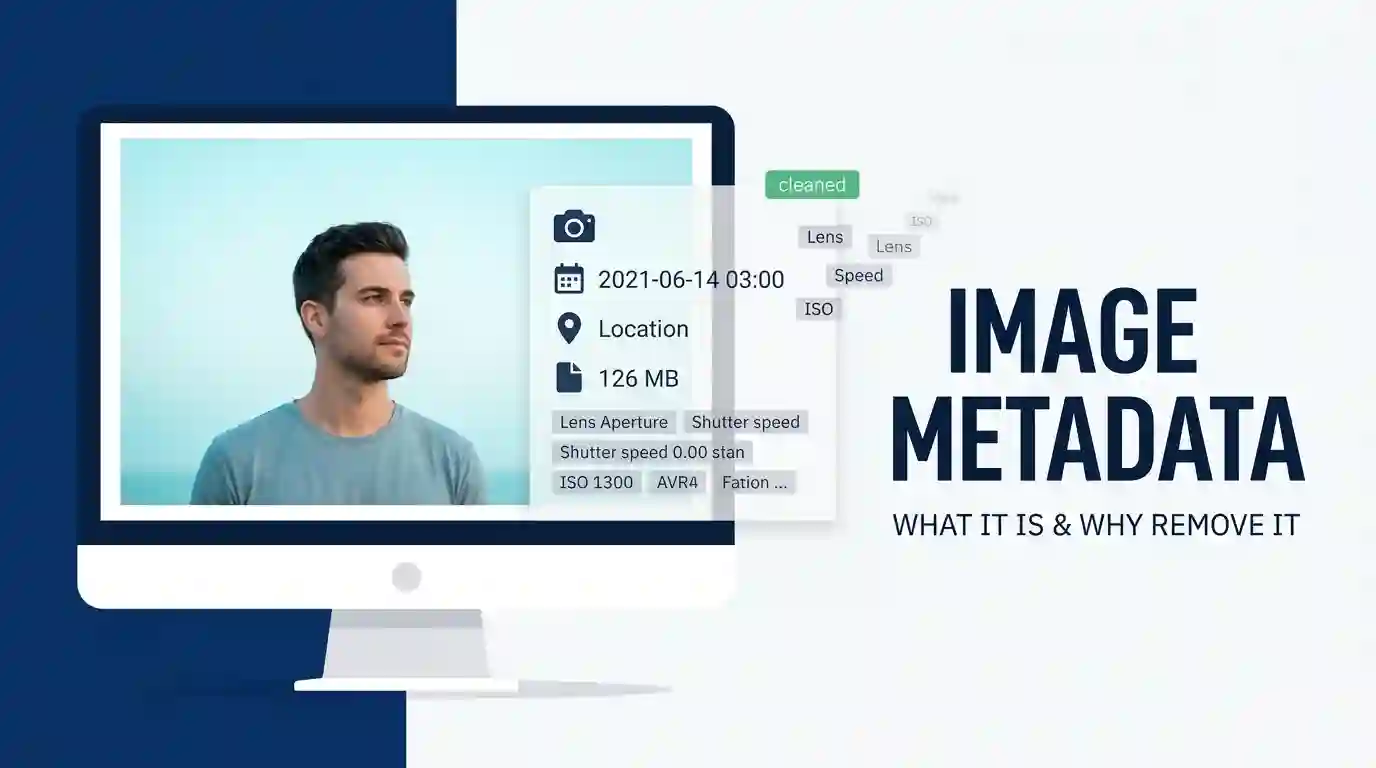
What Is Image Metadata and Why Should You Remove It?
When you take a photo with a phone or digital camera, the image file may contain more than the picture you see on the screen. Along with the visible pixels, it can carry additional information about the photograph, the device used to capture it, and sometimes the circumstances in which it was created.
This hidden information is called image metadata. You normally do not see it when opening a photo, but image software and metadata-reading tools can inspect it.
Metadata is useful for photographers and everyday users alike. It can help organize a photo collection, identify when a picture was taken, or preserve technical details from the camera. But when an image is being published or shared, some of that information may no longer be necessary.
Understanding what is inside an image file gives you more control over what you share.
What Is Image Metadata?
Image metadata is information stored in or associated with an image file that describes the file or the way the image was created.
One of the most familiar forms is EXIF, short for Exchangeable Image File Format. Cameras and smartphones can use EXIF fields to store information such as capture time, camera model, image dimensions, and camera settings. Depending on the device and its settings, GPS information may also be included.
Other metadata standards and fields can also exist depending on the image format and software used to create or edit the file.
The important point is that metadata is separate from the visible photograph. Two images can look exactly the same while containing different amounts of information inside their files.
What Information Can an Image Contain?
The exact information varies from one image to another. A smartphone photo does not necessarily contain every possible metadata field, and editing or exporting an image can change what remains in the file.
Common examples include:
- Date and time: When the photograph was captured.
- Camera or device: Manufacturer and model information.
- Camera settings: Details such as ISO, focal length, exposure-related values, or aperture on supported devices.
- Image dimensions: The width and height of the image.
- Orientation: Information used by software to display the photograph correctly.
- GPS data: Geographic coordinates when location tagging is available and enabled.
- Editing information: Some applications can add information while processing an image.
Not every file contains all of these fields. The only reliable way to know what is present is to inspect the actual image.
How to Check Image Metadata Before Sharing
You do not need to remove metadata blindly. A better approach is to check the image first and decide whether the information needs to be kept.
Here is a practical workflow you can use with a photograph on your computer.
Step 1: Make a copy of the original image
If the photograph is important, keep the original file untouched. Create a working copy for inspection or editing. This is especially useful for photographs you may want to archive later.
Step 2: Open the image information panel
Depending on your operating system, image viewer, or file manager, look for an option such as Properties, Get Info, Details, or Information.
The available fields will vary. Some applications show only basic file information, while dedicated metadata software can display a much larger set of tags.
Step 3: Look for EXIF or location information
Pay particular attention to fields related to:
- GPS or location
- Date and time of capture
- Camera make and model
- Lens information
- Exposure and camera settings
- Software or editing application
If you find GPS coordinates, for example, the file may contain a more precise location than you expected from simply looking at the photograph.
Step 4: Decide what the shared copy actually needs
There is no rule saying every piece of metadata must be removed. If you are sending a photograph to a photography client and the technical information is useful, keeping it may make sense.
If the same image is going onto a public website and the metadata provides no benefit, creating a cleaned copy can be a more appropriate choice.
Step 5: Inspect the processed copy again
After removing metadata, check the new file rather than assuming the job is complete. Metadata handling can differ between file formats and applications, so verification is preferable when the information matters.
This simple check-and-verify workflow is more useful than treating metadata removal as a one-click privacy guarantee.
Why Would You Remove Metadata From a Photo?
For many photographs, metadata is harmless and useful. The reason to remove it is usually that the information has no value for the person receiving the image.
For example, a photograph intended for a public blog post may not need the camera model, capture details, or location information attached to the downloadable image.
Removing unnecessary metadata can therefore be part of a broader file-preparation process before publishing or sharing an image.
When Should You Keep Metadata?
There are plenty of situations where metadata is worth keeping.
Photographers may use capture dates and camera settings to organize their collections or study how an image was created. Metadata can also be useful when maintaining an original archive of photographs.
A practical solution is to separate the two purposes. Keep the original photograph with its metadata for your own records, then create a separate copy for public sharing when the additional information is not required.
This approach gives you the original file without forcing you to expose all of its information whenever you share a photograph.
How to Remove Image Metadata Before Sharing
If you have already checked the file and decided that its metadata is unnecessary, you can use desktop software, operating-system features, or a dedicated metadata-cleaning tool.
For a quick browser-based workflow, the Image Metadata Remover can be useful when you simply want to prepare a cleaner copy of an image without manually working through individual metadata fields.
A simple workflow
- Select the image: Choose the photograph you want to process.
- Upload the working copy: Use a copy rather than your only original when the photograph is important.
- Process the image: Let the tool create a version with metadata removed.
- Save the cleaned copy: Keep the processed image separately from your original.
- Check the result: If the metadata matters for your use case, inspect the resulting file before publishing it.
This workflow is particularly convenient when you have a single image or a small number of photographs that need to be prepared for sharing.
You should still keep your original files when they have archival value. Metadata removal is best treated as a preparation step for a particular copy, not as a reason to replace your entire photo library with cleaned files.
What About Photos Taken With a Smartphone?
Smartphones deserve extra attention because their cameras work alongside features such as location services.
Depending on the phone and its settings, a photograph may contain capture time, device information and, in some cases, geographic coordinates. Whether those fields are present depends on the device, configuration, application, and how the image has been exported or processed.
If you regularly publish photographs from your phone, checking the metadata of a sample image can help you understand what your particular device is actually putting into its files.
Does Social Media Automatically Remove Metadata?
Different websites and platforms can process uploaded images differently. A service may create a new version of an image, remove some metadata, preserve certain fields, or handle different formats in different ways.
Because of that, it is better not to assume that uploading an image somewhere will automatically remove everything you do not want to share.
If a particular metadata field matters to you, inspect the file yourself before uploading it.
Removing Metadata Does Not Remove Everything Visible in a Photo
Metadata is only one source of information.
A photograph can still reveal details through its visible content. A house number, street sign, vehicle registration plate, computer screen, workplace logo, school name, or recognizable location may provide information even if the file contains no metadata.
So when preparing an image for public use, consider both the information stored in the file and the information visible in the photograph.
Does Removing Metadata Change the Picture?
Metadata and image content are separate parts of a digital file. Removing metadata is intended to remove associated information rather than change what the photograph looks like.
It does not mean cropping the picture, reducing its resolution, changing its colors, or adding a watermark.
However, the exact behavior depends on the tool, file format, and processing method. That is another reason why checking the resulting file can be useful when you need a specific result.
Image Metadata and Website Publishing
Website owners often download, edit, resize, and upload images several times during the content creation process. Not every copy needs to carry the same information as the original photograph.
If an image is being used as part of an article, the priority should be the information the reader actually needs. Unnecessary file metadata usually has little value to the reader, while an original archive can retain it for future reference.
The same principle applies to written content. An article does not become more useful simply because it is longer. If you are planning content for a website, this guide on How Many Words Should a Blog Post Have? A Practical Content Planning Guide explains how article length can be considered alongside the subject and reader's needs.
A Practical Checklist Before Uploading an Image
- Keep a backup of the original if the image is important.
- Check whether the file contains GPS or other location information.
- Check the capture date and device information if they matter to you.
- Decide whether the metadata has a genuine purpose for the recipient.
- Create a cleaned copy when unnecessary metadata does not need to be shared.
- Check the processed file when the result is important.
- Look at the visible photograph for personal information as well.
Final Thoughts
Image metadata is a normal part of digital photography. It can make photographs easier to organize and can preserve useful technical information, but it can also contain details that have no reason to accompany a publicly shared image.
The sensible approach is not to remove metadata from every photograph. Check what is actually present, decide whether it serves a purpose, and create a separate cleaned copy when it does not.
Once you make metadata checking part of your image-sharing workflow, it becomes a small step that can give you much more control over the information attached to your photographs.
Share this article
BnwebTools Team
Helping you work smarter with free online tools
How Many Words Should a Blog Post Have? A Practical Content Planning Guide
Why Images Become Blurry After Uploading to a Website and How to Fix It
💬 Comments
No comments yet. Be the first to share your thoughts!